AGLT2 RHEL 10 Remote Desktop Access
Overview
X2Go is no longer supported on RHEL 10. AGLT2 has therefore switched to GNOME Remote Desktop for graphical remote access to RHEL 10 systems. This page describes how to connect to the RHEL 10 interactive node:umt3int03.aglt2.org
Network requirement: You must be connected to the University of Michigan (UM) VPN before connecting to the remote desktop.
Requirements
Before connecting, make sure you have:-
A Windows 10 or Windows 11 computer
-
An active UM VPN connection
-
The RDP username:
atlas
-
The RDP password provided by the AGLT2 administrator (please email us to ask for the password)
-
Your normal AFS username
-
Your normal AFS password
Connect to the UM VPN
If you are working outside the University network, connect to the UM VPN first. The RDP service on the UM Tier3 Login nodes is not intended to be accessed directly from the public Internet. Verify that your UM VPN connection is active before starting Remote Desktop.Connect Using Windows Remote Desktop
1. Start Remote Desktop Connection
Open the Windows Start menu and search for:Remote Desktop Connection
Windows + R
mstsc
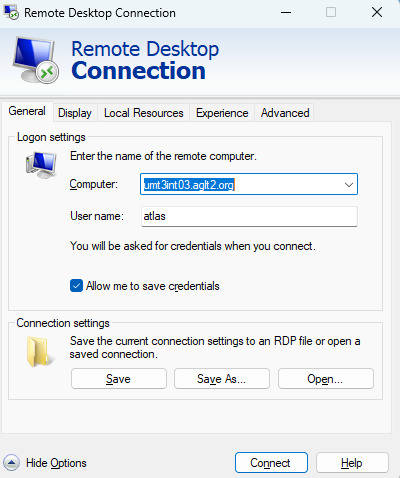
2. Enter the Remote Computer
In the Computer field, enter the UM Tier3 login nodes which we already built with RHEL10 (currently only umt3int03)umt3int03.aglt2.org
3. Enter the RDP Credentials
When prompted for credentials, use: Username:atlas
Note: The atlas credential is used to authenticate to the GNOME Remote Desktop service. It is separate from your individual Linux account.
4. Log in to the Linux Desktop
After the RDP connection is authenticated, the GNOME login screen will be displayed. Select your Linux username or choose the option to enter another username. Enter your normal AGLT2/UMich/Kerberos password. For example:Username: af_users
Password: <your afs password>
Verify the Remote Host
After logging in, open a Terminal and run:hostname
umt3int03
whoami
AFS Access
RDP authentication and AFS authentication are separate. If AFS files are not accessible after logging in, check your Kerberos credentials:klist
aklog
tokens
kinitaklogDisconnecting
When finished, use Log Out from the GNOME desktop if you want to terminate your Linux session. You may also close the Remote Desktop window.Note: Closing the Remote Desktop window may disconnect the RDP connection without logging out of the Linux session. Log out of GNOME when you are finished with the session.
Troubleshooting
Remote Desktop cannot connect
Check the following:-
Confirm that you are connected to the UM VPN.
-
Verify the hostname:
umt3int03.aglt2.org
-
From a Windows Command Prompt, test DNS:
nslookup umt3int03.aglt2.org
-
If the hostname cannot be resolved, verify your UM VPN connection.
RDP credential is rejected
The first credential prompt requires the GNOME Remote Desktop credential:Username: atlas
Password: <RDP password>
Username: AFS user name
Password: <AFS password>
Linux login fails
Verify that you are using:-
Your correct afs username
-
Your normal afs password
atlas is not your Linux username.
AFS files are not accessible
Check Kerberos:klist
aklog
tokens
Quick Reference
| Item | Value |
|---|---|
| Remote desktop | GNOME Remote Desktop |
| Windows client | Windows Remote Desktop (mstsc) |
| Host | umt3int03.aglt2.org |
| VPN | UM VPN required |
| RDP username | atlas |
| RDP password | Provided by AGLT2 administrator |
| Linux username | AFS user name |
| Linux password | AFS password |
| Previous solution | X2Go |
| X2Go on RHEL 10 | No longer supported |
Authentication Flow
Windows PC
    |
    | 1. Connect to UM VPN
    v
UM Network
    |
    | 2. Windows Remote Desktop
    v
umt3int03.aglt2.org
    |
    | 3. RDP credential
    |    atlas + RDP password
    v
GNOME Login
    |
    | 4. Individual Linux credentials
    |    username + Kerberos password
    v
GNOME Desktop
umt3int03.aglt2.org, use atlas with the RDP password at the first prompt, and then log in with your normal Linux/UMich credentials.
-- WenjingWu - 11 Sep 2026




 Copyright © by the contributing authors. All material on this collaboration platform is the property of the contributing authors.
 Ideas, requests, problems regarding Foswiki? Send feedback